
How to Export Contacts from LinkedIn (4 Actionable Ways)

Learn how to export contacts from LinkedIn using 4 methods, including Sales Navigator. Our guide covers cleaning the CSV, importing to a CRM, and outreach.

0 - Minute Read

You probably have this problem already.

Your LinkedIn account is full of people you know, or at least people who accepted your connection request for a reason. Former buyers. Prospects who changed jobs. Partners. Referral sources. Old colleagues who now sit inside accounts you want to reach. But when you need that network for pipeline, it stays trapped inside LinkedIn as a scrolling list instead of working data.

Organizations often mismanage this. They either leave the network untouched, or they export everything and blast a generic sequence. Both approaches waste value. Your LinkedIn network should function like an owned relationship asset, not a dead address book.

That’s why learning how to export contacts from linkedin matters. The export itself is easy. The hard part is deciding which export method fits your goal, cleaning the file so it doesn’t poison your CRM, and using it in a way that creates conversations instead of unsubscribes.

A good reference if you want another take on the opportunity side is Export LinkedIn Contacts And Leverage It For Your Growth. It frames the same core idea well. Your network has latent demand in it. You just need an operating model around it.

Most small teams also run into a tooling problem. Marketing lives in one app, outreach in another, CRM somewhere else, and nothing stays aligned. If you're trying to fix that bigger systems issue while you build outbound from your network, it helps to understand what an all-in-one business platform is supposed to replace.

Your LinkedIn Network Is a Goldmine You Are Not Using

A dormant LinkedIn network is one of the most common revenue leaks I see.

A founder spends years adding prospects, clients, investors, operators, and peers. A head of sales inherits an account with a healthy network built from prior roles. An agency owner has hundreds of contacts across multiple niches. Then they open LinkedIn, search manually, message a few people, get distracted, and move on. Nothing compounds because nothing is organized.

Value isn't just in who is connected to you. It's in the context around those connections. Some people know you well. Some only remember your name. Some moved into better-fit companies. Some now manage teams. Some engaged with your content recently. That difference matters because outreach should follow relationship strength, not just list size.

Practical rule: Treat your exported LinkedIn contacts as a relationship map first and a prospect list second.

When teams skip that mindset, they make two mistakes:

  • They confuse access with readiness. Just because you can export a contact doesn't mean that person is ready for a sales email.

  • They overvalue volume. A smaller, segmented list from your own network usually beats a huge generic file you haven't reviewed.

  • They ignore ownership. LinkedIn is rented ground. Your CSV, CRM, and notes are the durable assets.

I've watched teams discover quick wins just by pulling their network into a spreadsheet and sorting by company, title, and connection recency. Suddenly they see clusters. Former customers now working elsewhere. Warm paths into target accounts. Regions where they already have more trust than they realized.

That’s the shift. Stop thinking about LinkedIn as a place to browse and start treating it as a source system for relationship-driven pipeline.

Four Methods for Exporting Your LinkedIn Contacts

There isn't one best method. There’s a best method for the job in front of you.

If you want a backup of your whole first-degree network, use LinkedIn’s own export. If you want targeted prospecting data, Sales Navigator is stronger. If you need something quick while you’re away from your laptop, the mobile route is useful for a narrow task. If you need repeatable workflows at scale, some teams add compliant third-party tooling, but that’s where judgment matters.
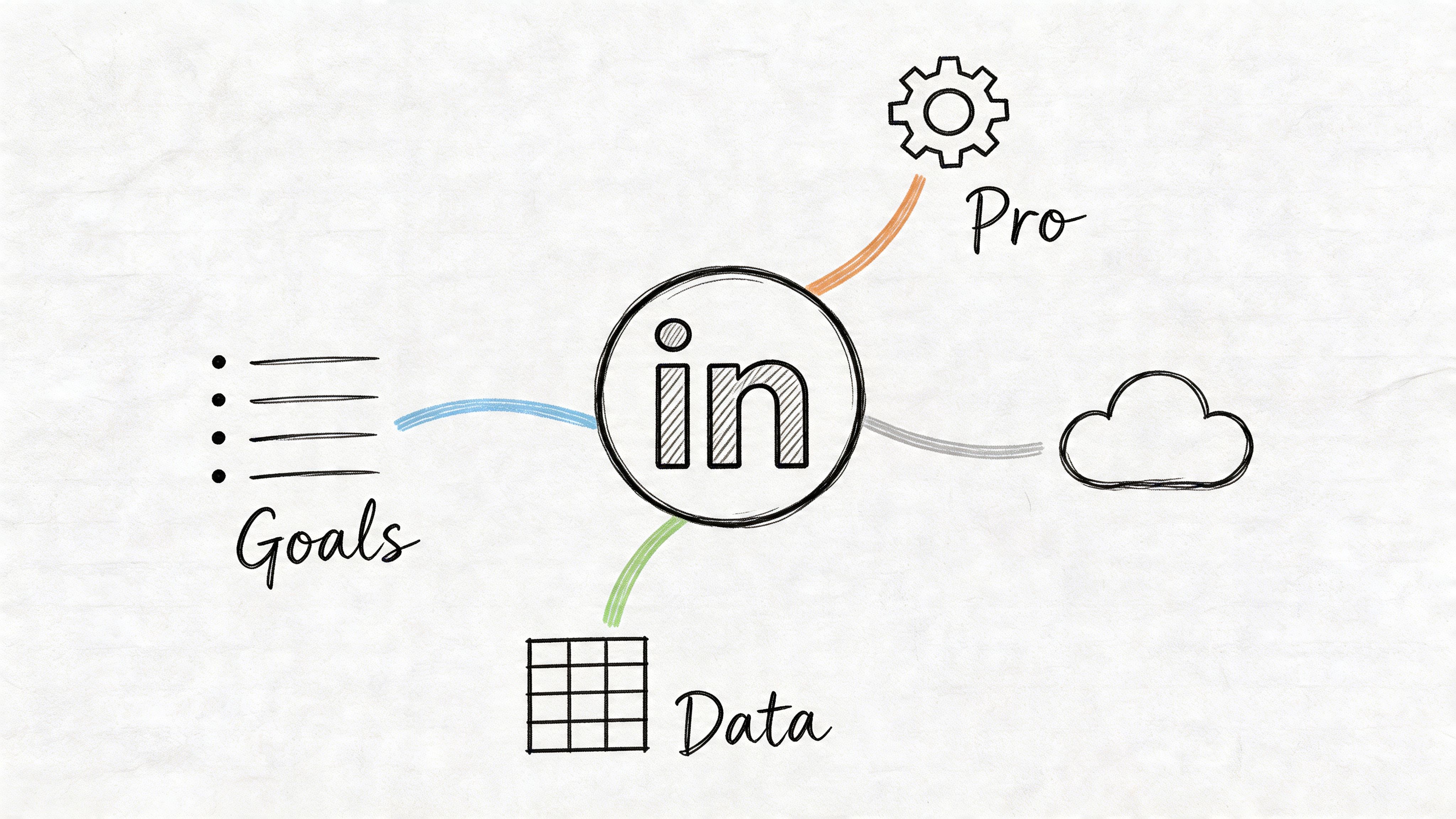
A hand-drawn mind map centered on a LinkedIn icon branching out to goals, professional settings, data, and cloud.

Method one with LinkedIn’s native data export

This is the cleanest place to start because it’s LinkedIn’s official path.

LinkedIn added its native contact export as part of its privacy tooling around 2015. You can request your first-degree connections from Settings & Privacy > Data privacy > Get a copy of your data, and LinkedIn typically delivers the archive by email within 10 to 15 minutes according to Amplemarket’s write-up on exporting LinkedIn contacts.

Use this when you need a basic CSV for backup, spreadsheet review, or a light CRM import.

The workflow is simple:

  1. Open Settings & Privacy. Go to the data privacy area, not account preferences.

  2. Choose the data copy option. Select the specific data request instead of a full archive if your goal is speed.

  3. Request your connections file. LinkedIn prepares the export and emails the download.

  4. Download and open the CSV. Excel and Google Sheets both work fine.

What you’ll usually get are core fields such as first name, last name, job title, and company. This method can also include email addresses, but only if the connection made them visible. It does not give you a complete outreach-ready dataset.

That’s the trade-off. It’s compliant, easy, and reliable for first-degree data. It’s also thin.

Native export is for ownership and organization. It is not a full prospecting system.

Method two with Sales Navigator lead list export

Sales Navigator is where export becomes operational instead of administrative.

Its value isn't just that you can get more leads. It’s that you can define exactly which segment you want before export. Instead of dumping your entire network, you can build a list around role, company, activity, or account fit and then move only the right people into downstream outreach.

According to the same Amplemarket overview of LinkedIn exports, native export often lacks email addresses, while Sales Navigator lead lists or searches can produce richer datasets through integrated tools. It also notes that users can export up to 2,500 leads per search, and demand for exported data has risen 300% since 2020 as remote selling expanded.

If you're prospecting by segment, this is the better route.

A practical approach looks like this:

  • Build the search carefully. Start with buyer role, company size, geography, and intent-style filters such as recent posting activity.

  • Save leads to a list. Don’t export straight from a messy search result page. Save first so the list becomes reusable.

  • Export in controlled batches. Keep your exports organized by campaign theme, not by random date.

  • Push into your CRM with source tags. The source should show that these came from LinkedIn Sales Navigator, not generic outbound.

The upside is precision. The downside is that this isn't a one-click bulk backup of everyone you know. It’s a prospecting workflow and should be treated like one.

Method three from a mobile workflow

The mobile app isn’t where I’d run serious list operations, but it still has a place.

Sometimes you’re between meetings, at an event, or traveling, and you want to trigger the data request so the export is waiting when you get back to your desktop. In that case, the mobile app can help you initiate the process through your account settings. The main work still happens after download, when you inspect the CSV and shape it for use.

Use mobile when speed matters more than review.

A few guardrails make this smoother:

  • Request from mobile, process on desktop. Don’t try to do cleanup from a phone.

  • Name your purpose first. Backup, re-engagement, referral mapping, and partner outreach should not share the same file.

  • Check the delivery email immediately. If the archive arrives while you’re busy, flag it so it doesn’t get buried.

Method four with compliant third-party tooling

Individuals often encounter issues when prioritizing convenience.

There are tools in the market that help extract, enrich, or sync LinkedIn-related data into the rest of your workflow. Some teams use them to move faster. That can work, but only if you understand the difference between compliant assistance and behavior that puts your account or data practices at risk.

LinkedIn tightened policy against third-party scrapers in 2018, which pushed more teams back toward official exports and safer workflows, as noted in the earlier Amplemarket source. That matters. If your process depends on brittle scraping tricks, it will eventually create operational or compliance headaches.

Use external tools for tasks like:

  • Enrichment after export. Add missing work emails or phone fields where appropriate.

  • Workflow automation. Route CSV data into a CRM or campaign builder.

  • Deduplication and syncing. Keep one clean record instead of scattered list copies.

Don't use them as an excuse to stop thinking about permission, list quality, or relationship context.

Which method fits which job

Here’s the fast decision view.

Goal

Best method

Why

Back up your full first-degree network

Native LinkedIn export

Official, simple, broad coverage

Build a targeted outbound list

Sales Navigator export

Better filtering and stronger data potential

Trigger an export while away from desk

Mobile workflow

Fast initiation, later desktop cleanup

Scale post-export operations

Compliant third-party tooling

Useful for enrichment, sync, and process efficiency

If your use case is “I want everyone I know in one place,” choose native export.

If your use case is “I need the right buyers inside the right accounts for a campaign,” choose Sales Navigator and build the list before you export.

Cleaning and Preparing Your Exported CSV File

A CSV from LinkedIn is raw inventory. It isn’t campaign-ready.

If you import that file as-is, you usually create duplicates, inconsistent job titles, blank email fields, and messy company names. Then sales starts working from bad records, marketing syncs the wrong segments, and reporting becomes noise. The cleanup step is where a contact export becomes usable.

Start by removing avoidable friction

Open the CSV in Excel or Google Sheets and look for basic structural problems first.

You want consistent headers, one contact per row, and no weird formatting caused by encoding or manual edits. If names are crammed into one field, split them. If company names vary between “IBM,” “I.B.M.,” and “International Business Machines,” normalize them. If titles are too granular to segment cleanly, create a standardized title band column.

My rule is simple. Clean for action, not perfection. You don’t need a data warehouse. You need a file your team can filter, map, and trust.

Deal with missing emails early

This is the part often underestimated.

A major limitation of basic LinkedIn export is that email addresses are missing in 60 to 80 percent of cases because of privacy settings updated in 2017, and enrichment tools can reach up to 90 percent email find rates when paired with Sales Navigator data, according to the referenced YouTube breakdown on LinkedIn export limitations and enrichment.

That tells you two things. First, missing emails are normal. Second, you should decide immediately whether this file is for LinkedIn-based re-engagement, email outreach, or both.

Don’t build an email sequence around a file you haven’t enriched and verified. You’ll spend more time fixing bounce and routing problems than starting conversations.

This is also where list hygiene matters. If your file will feed outbound, review a practical resource like A Practical Guide to Email List Cleaning. Not because LinkedIn exports are uniquely broken, but because any imported list deteriorates fast when no one manages quality.

Add fields that support segmentation

The exported file usually needs extra columns that LinkedIn didn’t give you.

Add your own working columns before import. That gives you structure for routing, prioritization, and personalization. Typical additions include relationship strength, target segment, owner, outreach angle, and do-not-contact status.

A clean file often includes custom fields such as:

  • Relationship temperature for warm, lukewarm, or cold ties

  • ICP fit for ideal, possible, or irrelevant

  • Last known context like former client, event contact, peer, or partner

  • Campaign tag so the list doesn’t disappear into generic CRM clutter

If your team plans to automate handoffs or enrichment after import, it helps to think ahead in workflow terms. A good primer on structuring that logic lives in this guide on how to create a workflow.

Suggested field mapping for importing LinkedIn contacts to Stamina

CSV Column Header (Source)

Stamina CRM Field (Destination)

Notes

First Name

First Name

Check capitalization and remove stray symbols

Last Name

Last Name

Keep suffixes in a separate note field if needed

Company

Company Name

Standardize naming before import

Position

Job Title

Normalize title variants for reporting

Email Address

Work Email

Import only after verification if possible

Connected On

Connection Date

Useful for reactivation timing

Custom Column: Relationship Temperature

Lifecycle or Custom Contact Field

Helps separate warm ties from cold network records

Custom Column: Source

Lead Source

Use a fixed value such as LinkedIn Export

Custom Column: Campaign Tag

List or Segment Tag

Prevents imported contacts from blending into unrelated records

Custom Column: Notes

Notes

Add context like mutual history or referral path

That table is basic by design. It works because it forces discipline before the import.

Remove people you should not contact

This step gets skipped when teams are in a rush.

Your LinkedIn network includes recruiters, friends, vendors, past coworkers outside your market, competitors, students, and random low-fit contacts from years ago. If you treat all of them as pipeline candidates, your CRM becomes a junk drawer.

Filter out obvious non-target records before import. It’s faster to exclude them now than explain later why the sequence went to the wrong audience.

Turning Your List into Pipeline with a Unified CRM

A spreadsheet is a holding area. It is not a revenue system.

Once the file is clean, the next move is to put it somewhere that can track ownership, segment records, log activity, and support actual follow-up. If you leave the list in CSV form, the work stays manual. People copy rows, lose context, forget to update notes, and launch outreach without knowing who else touched the contact.
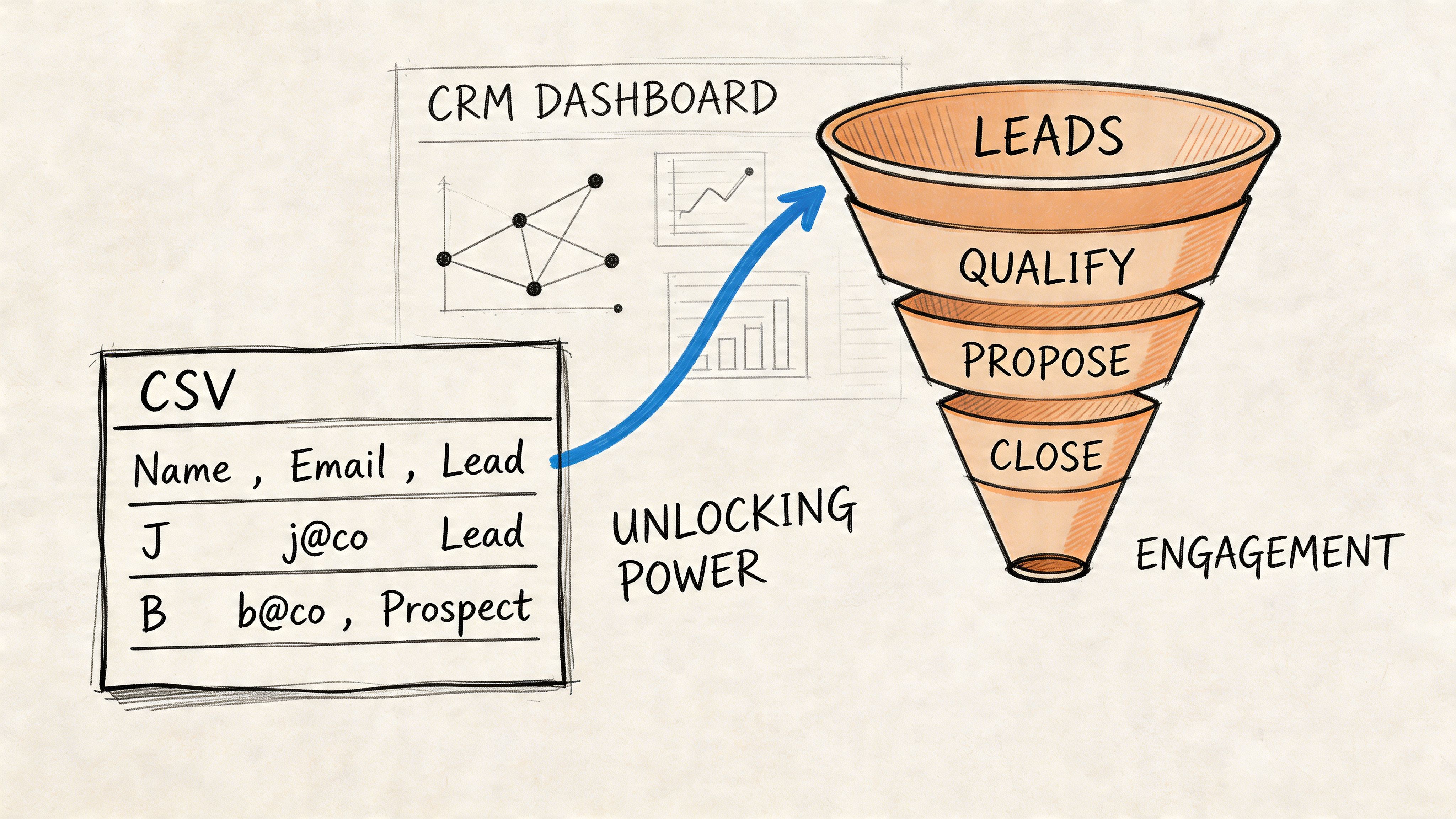
A conceptual illustration showing a CSV file list feeding into a sales funnel process in a CRM.

Why a spreadsheet breaks down fast

The moment multiple people work the same list, spreadsheets start creating hidden problems.

One rep changes a title. Another adds a note in a different format. Someone else downloads a local version and works from that for a week. No one knows which file is current. That’s how warm relationships get mishandled.

A proper CRM fixes that because it centralizes the record and the activity around it. It also makes source-based segmentation possible, which matters when you want to separate imported LinkedIn contacts from inbound leads, partner leads, or purchased data.

If you're refining that operating model, these CRM best practices are worth reviewing before you import anything important.

What happens when the data actually becomes usable

The key advantage of a unified CRM is that contact data stops being static.

Once imported, you can assign owners, create segments, route accounts, suppress the wrong personas, and tie each contact to a campaign or lifecycle stage. That gives the list memory. It also makes it possible to run outreach based on context rather than whatever happens to be visible in a spreadsheet filter.

This matters even more for SMB teams using AI-assisted outbound. According to RedactAI’s article on exporting LinkedIn contacts, using an AI-driven CRM with an AI SDR such as Zara to generate personalized sequences from fields like Position and Company has shown 3x more demo bookings compared to manual outreach on similar platforms.

That doesn’t mean every imported record should go straight into automation. It means your system can use the exported fields intelligently once the list is inside a workflow-aware environment.

A better operating model for imported LinkedIn contacts

Think in stages, not uploads.

  • Import the cleaned file

  • Tag by source and campaign intent

  • Segment by warmth and fit

  • Draft personalized outreach paths

  • Review before activation

That last step matters. AI can help with personalization, but imported relationship data still needs human judgment.

Here’s a short product walkthrough that shows how that kind of system looks in practice:

The difference between a useful CRM and an overloaded one is whether each import has a purpose. If the answer is “we’ll figure it out later,” don’t import yet. If the answer is “these are founder network contacts in target SaaS accounts for a reactivation campaign,” now you have something operational.

Smart Outreach and Compliance for Your Exported List

The worst move after a LinkedIn export is sending the same message to everyone.

That feels efficient because the list is already in hand. In practice, it burns trust. Your network includes strong relationships, weak ties, and people who barely remember why they accepted your request. Those groups should not receive the same outreach or the same cadence.
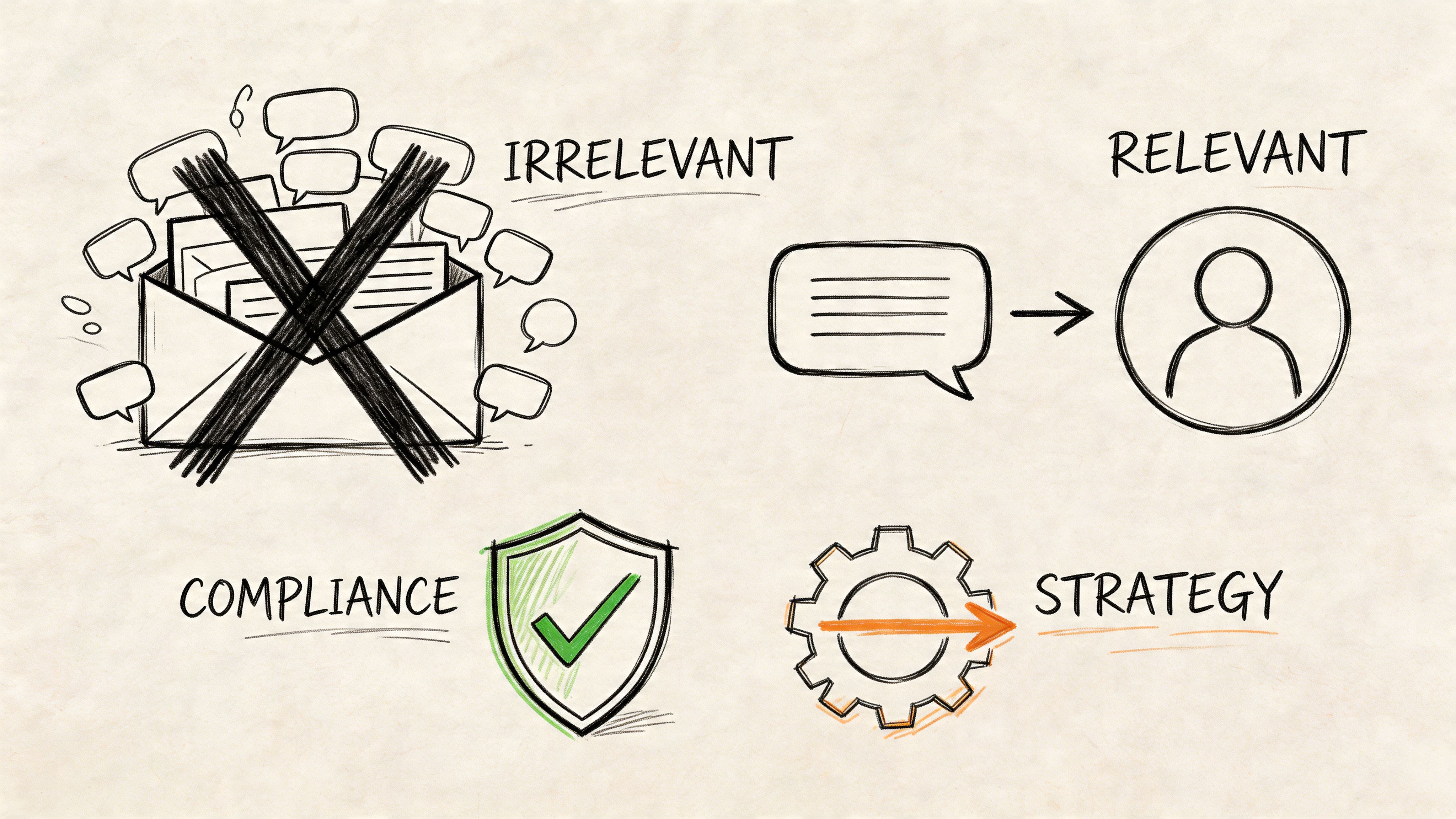
A conceptual sketch illustrating themes of irrelevant communication, relevant messaging, compliance, and strategic planning using icons.

Segment by relationship temperature

A contact export only becomes useful when you layer judgment onto it.

Start by separating the obvious warm group from the weak-tie group. Warm contacts are people with real prior context. Former customers, peers, event contacts who interacted meaningfully, or past conversations that still make sense. Weak ties are first-degree connections with little actual relationship depth.

That distinction matters because outreach to cold connections from an export has a 40 percent lower response rate, based on the cited 2025 to 2026 data in this YouTube discussion of outreach risk and compliance.

A simple segmentation model works well:

  • Warm means direct context exists and can be referenced naturally.

  • Lukewarm means they know your name or role but may need a reminder.

  • Cold means you’re connected, but the relationship is thin enough that standard outbound discipline should apply.

Use LinkedIn activity before email

A lot of exported-list outreach fails because the first touch arrives in email with no recent relevance.

A smarter sequence is to study patterns in the export, identify clusters by industry or role, and then use recent LinkedIn activity to personalize. The same cited source says using recent LinkedIn activity for personalization has shown a 30 percent boost in engagement.

That doesn't require elaborate automation. It requires paying attention.

Before you send an email, check whether the contact recently posted, changed roles, commented on a market issue, or interacted with your content. One relevant sentence beats a long generic sequence.

This is especially useful for weak ties. If someone posted about hiring, expansion, operations issues, or a problem your product solves, you now have a reason to contact them that isn't “we’re connected on LinkedIn.”

If you want a few examples of how to frame that first touch, this guide on writing a message for LinkedIn connection is a good companion.

Keep compliance practical

Most compliance mistakes on exported lists aren't malicious. They’re lazy.

Teams assume a LinkedIn connection equals blanket permission. It doesn't. You still need to think about lawful processing, outreach relevance, opt-out handling, and whether your message reflects a legitimate business reason to contact the person.

The easiest internal checklist is this:

  • Know why this person is on your list

  • Know why now is an appropriate time to contact them

  • Know what context makes the message relevant

  • Know how they can opt out or decline cleanly

Mass import plus mass email is the shortcut. Relationship-aware segmentation is the durable play.

Troubleshooting Common LinkedIn Export Issues

Most LinkedIn export problems are boring, which is good news. Boring problems are usually fixable.

The export email hasn’t arrived

If the file doesn’t show up quickly, the issue is usually one of three things. LinkedIn is still processing the request, the message went to spam, or you requested a broader archive than needed.

Try this:

  • Check spam and filtered folders. Export emails often land there.

  • Confirm the email on your LinkedIn account. If the wrong address is attached, you’ll wait forever.

  • Request only the relevant data. A focused request is easier to process than a full archive.

If it still doesn’t arrive, submit a fresh request rather than waiting indefinitely.

The CSV opens with broken characters or strange formatting

This is usually an encoding issue, not a bad export.

Open the file through the import function in Excel or Google Sheets instead of double-clicking it. That gives you more control over how the text is interpreted. If one app renders it badly, try the other before editing the raw file.

Important columns seem to be missing

First check whether they were ever available through the method you used.

Native LinkedIn export is limited. If you expected profile URLs, phone numbers, notes, or custom tags, that isn’t a file error. It’s a method mismatch. Go back to your use case and decide whether you needed Sales Navigator, enrichment, or a custom working column added after export.

Missing fields are often a planning problem, not a technical problem.

Your CRM rejects the import

This usually comes down to header mismatch, duplicate handling rules, or invalid formatting inside cells.

Fixes are straightforward:

  • Match your headers to CRM field names. Don’t make the importer guess.

  • Remove stray line breaks and symbols. Notes copied from LinkedIn can create hidden errors.

  • Standardize empty values. Blank cells are usually fine, but inconsistent placeholder text can create conflicts.

  • Test with a small batch first. Import a sample before uploading the full file.

If the sample imports cleanly, the issue is almost always somewhere in the rest of the data, not the CRM itself.

Frequently Asked Questions About LinkedIn Exports

Can you export all your LinkedIn connections at once

Yes, for your own first-degree connections through LinkedIn’s native data export. That’s the right route when you want a broad backup or a starting CSV.

Can you export someone else’s LinkedIn contacts

Not through LinkedIn’s official tools. You can export your own data, not another person’s network.

Why are so many emails missing from my export

Because LinkedIn only includes email addresses when they’re visible through the connection’s settings. If your plan depends on email outreach, expect to enrich and verify the file after export.

Should I import every exported contact into my CRM

No. Filter first. Remove low-fit, non-business, or irrelevant contacts before import so your CRM stays usable.

Is a LinkedIn connection the same as outreach permission

No. A connection gives you relationship context. It does not erase the need for relevant, respectful, compliant outreach.

What’s the best use case for a LinkedIn export

The strongest use cases are relationship reactivation, account mapping, referral path discovery, and targeted prospecting from known network clusters. It’s less effective when treated like a generic cold list.

If your team wants to turn scattered contacts, outreach, and CRM records into one working system, take a look at Stamina. It brings marketing, sales engagement, CRM, workflows, and AI SDR support into one place so your exported network can become an organized, usable pipeline instead of another spreadsheet sitting in downloads.

You probably have this problem already.

Your LinkedIn account is full of people you know, or at least people who accepted your connection request for a reason. Former buyers. Prospects who changed jobs. Partners. Referral sources. Old colleagues who now sit inside accounts you want to reach. But when you need that network for pipeline, it stays trapped inside LinkedIn as a scrolling list instead of working data.

Organizations often mismanage this. They either leave the network untouched, or they export everything and blast a generic sequence. Both approaches waste value. Your LinkedIn network should function like an owned relationship asset, not a dead address book.

That’s why learning how to export contacts from linkedin matters. The export itself is easy. The hard part is deciding which export method fits your goal, cleaning the file so it doesn’t poison your CRM, and using it in a way that creates conversations instead of unsubscribes.

A good reference if you want another take on the opportunity side is Export LinkedIn Contacts And Leverage It For Your Growth. It frames the same core idea well. Your network has latent demand in it. You just need an operating model around it.

Most small teams also run into a tooling problem. Marketing lives in one app, outreach in another, CRM somewhere else, and nothing stays aligned. If you're trying to fix that bigger systems issue while you build outbound from your network, it helps to understand what an all-in-one business platform is supposed to replace.

Your LinkedIn Network Is a Goldmine You Are Not Using

A dormant LinkedIn network is one of the most common revenue leaks I see.

A founder spends years adding prospects, clients, investors, operators, and peers. A head of sales inherits an account with a healthy network built from prior roles. An agency owner has hundreds of contacts across multiple niches. Then they open LinkedIn, search manually, message a few people, get distracted, and move on. Nothing compounds because nothing is organized.

Value isn't just in who is connected to you. It's in the context around those connections. Some people know you well. Some only remember your name. Some moved into better-fit companies. Some now manage teams. Some engaged with your content recently. That difference matters because outreach should follow relationship strength, not just list size.

Practical rule: Treat your exported LinkedIn contacts as a relationship map first and a prospect list second.

When teams skip that mindset, they make two mistakes:

  • They confuse access with readiness. Just because you can export a contact doesn't mean that person is ready for a sales email.

  • They overvalue volume. A smaller, segmented list from your own network usually beats a huge generic file you haven't reviewed.

  • They ignore ownership. LinkedIn is rented ground. Your CSV, CRM, and notes are the durable assets.

I've watched teams discover quick wins just by pulling their network into a spreadsheet and sorting by company, title, and connection recency. Suddenly they see clusters. Former customers now working elsewhere. Warm paths into target accounts. Regions where they already have more trust than they realized.

That’s the shift. Stop thinking about LinkedIn as a place to browse and start treating it as a source system for relationship-driven pipeline.

Four Methods for Exporting Your LinkedIn Contacts

There isn't one best method. There’s a best method for the job in front of you.

If you want a backup of your whole first-degree network, use LinkedIn’s own export. If you want targeted prospecting data, Sales Navigator is stronger. If you need something quick while you’re away from your laptop, the mobile route is useful for a narrow task. If you need repeatable workflows at scale, some teams add compliant third-party tooling, but that’s where judgment matters.

A hand-drawn mind map centered on a LinkedIn icon branching out to goals, professional settings, data, and cloud.

Method one with LinkedIn’s native data export

This is the cleanest place to start because it’s LinkedIn’s official path.

LinkedIn added its native contact export as part of its privacy tooling around 2015. You can request your first-degree connections from Settings & Privacy > Data privacy > Get a copy of your data, and LinkedIn typically delivers the archive by email within 10 to 15 minutes according to Amplemarket’s write-up on exporting LinkedIn contacts.

Use this when you need a basic CSV for backup, spreadsheet review, or a light CRM import.

The workflow is simple:

  1. Open Settings & Privacy. Go to the data privacy area, not account preferences.

  2. Choose the data copy option. Select the specific data request instead of a full archive if your goal is speed.

  3. Request your connections file. LinkedIn prepares the export and emails the download.

  4. Download and open the CSV. Excel and Google Sheets both work fine.

What you’ll usually get are core fields such as first name, last name, job title, and company. This method can also include email addresses, but only if the connection made them visible. It does not give you a complete outreach-ready dataset.

That’s the trade-off. It’s compliant, easy, and reliable for first-degree data. It’s also thin.

Native export is for ownership and organization. It is not a full prospecting system.

Method two with Sales Navigator lead list export

Sales Navigator is where export becomes operational instead of administrative.

Its value isn't just that you can get more leads. It’s that you can define exactly which segment you want before export. Instead of dumping your entire network, you can build a list around role, company, activity, or account fit and then move only the right people into downstream outreach.

According to the same Amplemarket overview of LinkedIn exports, native export often lacks email addresses, while Sales Navigator lead lists or searches can produce richer datasets through integrated tools. It also notes that users can export up to 2,500 leads per search, and demand for exported data has risen 300% since 2020 as remote selling expanded.

If you're prospecting by segment, this is the better route.

A practical approach looks like this:

  • Build the search carefully. Start with buyer role, company size, geography, and intent-style filters such as recent posting activity.

  • Save leads to a list. Don’t export straight from a messy search result page. Save first so the list becomes reusable.

  • Export in controlled batches. Keep your exports organized by campaign theme, not by random date.

  • Push into your CRM with source tags. The source should show that these came from LinkedIn Sales Navigator, not generic outbound.

The upside is precision. The downside is that this isn't a one-click bulk backup of everyone you know. It’s a prospecting workflow and should be treated like one.

Method three from a mobile workflow

The mobile app isn’t where I’d run serious list operations, but it still has a place.

Sometimes you’re between meetings, at an event, or traveling, and you want to trigger the data request so the export is waiting when you get back to your desktop. In that case, the mobile app can help you initiate the process through your account settings. The main work still happens after download, when you inspect the CSV and shape it for use.

Use mobile when speed matters more than review.

A few guardrails make this smoother:

  • Request from mobile, process on desktop. Don’t try to do cleanup from a phone.

  • Name your purpose first. Backup, re-engagement, referral mapping, and partner outreach should not share the same file.

  • Check the delivery email immediately. If the archive arrives while you’re busy, flag it so it doesn’t get buried.

Method four with compliant third-party tooling

Individuals often encounter issues when prioritizing convenience.

There are tools in the market that help extract, enrich, or sync LinkedIn-related data into the rest of your workflow. Some teams use them to move faster. That can work, but only if you understand the difference between compliant assistance and behavior that puts your account or data practices at risk.

LinkedIn tightened policy against third-party scrapers in 2018, which pushed more teams back toward official exports and safer workflows, as noted in the earlier Amplemarket source. That matters. If your process depends on brittle scraping tricks, it will eventually create operational or compliance headaches.

Use external tools for tasks like:

  • Enrichment after export. Add missing work emails or phone fields where appropriate.

  • Workflow automation. Route CSV data into a CRM or campaign builder.

  • Deduplication and syncing. Keep one clean record instead of scattered list copies.

Don't use them as an excuse to stop thinking about permission, list quality, or relationship context.

Which method fits which job

Here’s the fast decision view.

Goal

Best method

Why

Back up your full first-degree network

Native LinkedIn export

Official, simple, broad coverage

Build a targeted outbound list

Sales Navigator export

Better filtering and stronger data potential

Trigger an export while away from desk

Mobile workflow

Fast initiation, later desktop cleanup

Scale post-export operations

Compliant third-party tooling

Useful for enrichment, sync, and process efficiency

If your use case is “I want everyone I know in one place,” choose native export.

If your use case is “I need the right buyers inside the right accounts for a campaign,” choose Sales Navigator and build the list before you export.

Cleaning and Preparing Your Exported CSV File

A CSV from LinkedIn is raw inventory. It isn’t campaign-ready.

If you import that file as-is, you usually create duplicates, inconsistent job titles, blank email fields, and messy company names. Then sales starts working from bad records, marketing syncs the wrong segments, and reporting becomes noise. The cleanup step is where a contact export becomes usable.

Start by removing avoidable friction

Open the CSV in Excel or Google Sheets and look for basic structural problems first.

You want consistent headers, one contact per row, and no weird formatting caused by encoding or manual edits. If names are crammed into one field, split them. If company names vary between “IBM,” “I.B.M.,” and “International Business Machines,” normalize them. If titles are too granular to segment cleanly, create a standardized title band column.

My rule is simple. Clean for action, not perfection. You don’t need a data warehouse. You need a file your team can filter, map, and trust.

Deal with missing emails early

This is the part often underestimated.

A major limitation of basic LinkedIn export is that email addresses are missing in 60 to 80 percent of cases because of privacy settings updated in 2017, and enrichment tools can reach up to 90 percent email find rates when paired with Sales Navigator data, according to the referenced YouTube breakdown on LinkedIn export limitations and enrichment.

That tells you two things. First, missing emails are normal. Second, you should decide immediately whether this file is for LinkedIn-based re-engagement, email outreach, or both.

Don’t build an email sequence around a file you haven’t enriched and verified. You’ll spend more time fixing bounce and routing problems than starting conversations.

This is also where list hygiene matters. If your file will feed outbound, review a practical resource like A Practical Guide to Email List Cleaning. Not because LinkedIn exports are uniquely broken, but because any imported list deteriorates fast when no one manages quality.

Add fields that support segmentation

The exported file usually needs extra columns that LinkedIn didn’t give you.

Add your own working columns before import. That gives you structure for routing, prioritization, and personalization. Typical additions include relationship strength, target segment, owner, outreach angle, and do-not-contact status.

A clean file often includes custom fields such as:

  • Relationship temperature for warm, lukewarm, or cold ties

  • ICP fit for ideal, possible, or irrelevant

  • Last known context like former client, event contact, peer, or partner

  • Campaign tag so the list doesn’t disappear into generic CRM clutter

If your team plans to automate handoffs or enrichment after import, it helps to think ahead in workflow terms. A good primer on structuring that logic lives in this guide on how to create a workflow.

Suggested field mapping for importing LinkedIn contacts to Stamina

CSV Column Header (Source)

Stamina CRM Field (Destination)

Notes

First Name

First Name

Check capitalization and remove stray symbols

Last Name

Last Name

Keep suffixes in a separate note field if needed

Company

Company Name

Standardize naming before import

Position

Job Title

Normalize title variants for reporting

Email Address

Work Email

Import only after verification if possible

Connected On

Connection Date

Useful for reactivation timing

Custom Column: Relationship Temperature

Lifecycle or Custom Contact Field

Helps separate warm ties from cold network records

Custom Column: Source

Lead Source

Use a fixed value such as LinkedIn Export

Custom Column: Campaign Tag

List or Segment Tag

Prevents imported contacts from blending into unrelated records

Custom Column: Notes

Notes

Add context like mutual history or referral path

That table is basic by design. It works because it forces discipline before the import.

Remove people you should not contact

This step gets skipped when teams are in a rush.

Your LinkedIn network includes recruiters, friends, vendors, past coworkers outside your market, competitors, students, and random low-fit contacts from years ago. If you treat all of them as pipeline candidates, your CRM becomes a junk drawer.

Filter out obvious non-target records before import. It’s faster to exclude them now than explain later why the sequence went to the wrong audience.

Turning Your List into Pipeline with a Unified CRM

A spreadsheet is a holding area. It is not a revenue system.

Once the file is clean, the next move is to put it somewhere that can track ownership, segment records, log activity, and support actual follow-up. If you leave the list in CSV form, the work stays manual. People copy rows, lose context, forget to update notes, and launch outreach without knowing who else touched the contact.

A conceptual illustration showing a CSV file list feeding into a sales funnel process in a CRM.

Why a spreadsheet breaks down fast

The moment multiple people work the same list, spreadsheets start creating hidden problems.

One rep changes a title. Another adds a note in a different format. Someone else downloads a local version and works from that for a week. No one knows which file is current. That’s how warm relationships get mishandled.

A proper CRM fixes that because it centralizes the record and the activity around it. It also makes source-based segmentation possible, which matters when you want to separate imported LinkedIn contacts from inbound leads, partner leads, or purchased data.

If you're refining that operating model, these CRM best practices are worth reviewing before you import anything important.

What happens when the data actually becomes usable

The key advantage of a unified CRM is that contact data stops being static.

Once imported, you can assign owners, create segments, route accounts, suppress the wrong personas, and tie each contact to a campaign or lifecycle stage. That gives the list memory. It also makes it possible to run outreach based on context rather than whatever happens to be visible in a spreadsheet filter.

This matters even more for SMB teams using AI-assisted outbound. According to RedactAI’s article on exporting LinkedIn contacts, using an AI-driven CRM with an AI SDR such as Zara to generate personalized sequences from fields like Position and Company has shown 3x more demo bookings compared to manual outreach on similar platforms.

That doesn’t mean every imported record should go straight into automation. It means your system can use the exported fields intelligently once the list is inside a workflow-aware environment.

A better operating model for imported LinkedIn contacts

Think in stages, not uploads.

  • Import the cleaned file

  • Tag by source and campaign intent

  • Segment by warmth and fit

  • Draft personalized outreach paths

  • Review before activation

That last step matters. AI can help with personalization, but imported relationship data still needs human judgment.

Here’s a short product walkthrough that shows how that kind of system looks in practice:

The difference between a useful CRM and an overloaded one is whether each import has a purpose. If the answer is “we’ll figure it out later,” don’t import yet. If the answer is “these are founder network contacts in target SaaS accounts for a reactivation campaign,” now you have something operational.

Smart Outreach and Compliance for Your Exported List

The worst move after a LinkedIn export is sending the same message to everyone.

That feels efficient because the list is already in hand. In practice, it burns trust. Your network includes strong relationships, weak ties, and people who barely remember why they accepted your request. Those groups should not receive the same outreach or the same cadence.

A conceptual sketch illustrating themes of irrelevant communication, relevant messaging, compliance, and strategic planning using icons.

Segment by relationship temperature

A contact export only becomes useful when you layer judgment onto it.

Start by separating the obvious warm group from the weak-tie group. Warm contacts are people with real prior context. Former customers, peers, event contacts who interacted meaningfully, or past conversations that still make sense. Weak ties are first-degree connections with little actual relationship depth.

That distinction matters because outreach to cold connections from an export has a 40 percent lower response rate, based on the cited 2025 to 2026 data in this YouTube discussion of outreach risk and compliance.

A simple segmentation model works well:

  • Warm means direct context exists and can be referenced naturally.

  • Lukewarm means they know your name or role but may need a reminder.

  • Cold means you’re connected, but the relationship is thin enough that standard outbound discipline should apply.

Use LinkedIn activity before email

A lot of exported-list outreach fails because the first touch arrives in email with no recent relevance.

A smarter sequence is to study patterns in the export, identify clusters by industry or role, and then use recent LinkedIn activity to personalize. The same cited source says using recent LinkedIn activity for personalization has shown a 30 percent boost in engagement.

That doesn't require elaborate automation. It requires paying attention.

Before you send an email, check whether the contact recently posted, changed roles, commented on a market issue, or interacted with your content. One relevant sentence beats a long generic sequence.

This is especially useful for weak ties. If someone posted about hiring, expansion, operations issues, or a problem your product solves, you now have a reason to contact them that isn't “we’re connected on LinkedIn.”

If you want a few examples of how to frame that first touch, this guide on writing a message for LinkedIn connection is a good companion.

Keep compliance practical

Most compliance mistakes on exported lists aren't malicious. They’re lazy.

Teams assume a LinkedIn connection equals blanket permission. It doesn't. You still need to think about lawful processing, outreach relevance, opt-out handling, and whether your message reflects a legitimate business reason to contact the person.

The easiest internal checklist is this:

  • Know why this person is on your list

  • Know why now is an appropriate time to contact them

  • Know what context makes the message relevant

  • Know how they can opt out or decline cleanly

Mass import plus mass email is the shortcut. Relationship-aware segmentation is the durable play.

Troubleshooting Common LinkedIn Export Issues

Most LinkedIn export problems are boring, which is good news. Boring problems are usually fixable.

The export email hasn’t arrived

If the file doesn’t show up quickly, the issue is usually one of three things. LinkedIn is still processing the request, the message went to spam, or you requested a broader archive than needed.

Try this:

  • Check spam and filtered folders. Export emails often land there.

  • Confirm the email on your LinkedIn account. If the wrong address is attached, you’ll wait forever.

  • Request only the relevant data. A focused request is easier to process than a full archive.

If it still doesn’t arrive, submit a fresh request rather than waiting indefinitely.

The CSV opens with broken characters or strange formatting

This is usually an encoding issue, not a bad export.

Open the file through the import function in Excel or Google Sheets instead of double-clicking it. That gives you more control over how the text is interpreted. If one app renders it badly, try the other before editing the raw file.

Important columns seem to be missing

First check whether they were ever available through the method you used.

Native LinkedIn export is limited. If you expected profile URLs, phone numbers, notes, or custom tags, that isn’t a file error. It’s a method mismatch. Go back to your use case and decide whether you needed Sales Navigator, enrichment, or a custom working column added after export.

Missing fields are often a planning problem, not a technical problem.

Your CRM rejects the import

This usually comes down to header mismatch, duplicate handling rules, or invalid formatting inside cells.

Fixes are straightforward:

  • Match your headers to CRM field names. Don’t make the importer guess.

  • Remove stray line breaks and symbols. Notes copied from LinkedIn can create hidden errors.

  • Standardize empty values. Blank cells are usually fine, but inconsistent placeholder text can create conflicts.

  • Test with a small batch first. Import a sample before uploading the full file.

If the sample imports cleanly, the issue is almost always somewhere in the rest of the data, not the CRM itself.

Frequently Asked Questions About LinkedIn Exports

Can you export all your LinkedIn connections at once

Yes, for your own first-degree connections through LinkedIn’s native data export. That’s the right route when you want a broad backup or a starting CSV.

Can you export someone else’s LinkedIn contacts

Not through LinkedIn’s official tools. You can export your own data, not another person’s network.

Why are so many emails missing from my export

Because LinkedIn only includes email addresses when they’re visible through the connection’s settings. If your plan depends on email outreach, expect to enrich and verify the file after export.

Should I import every exported contact into my CRM

No. Filter first. Remove low-fit, non-business, or irrelevant contacts before import so your CRM stays usable.

Is a LinkedIn connection the same as outreach permission

No. A connection gives you relationship context. It does not erase the need for relevant, respectful, compliant outreach.

What’s the best use case for a LinkedIn export

The strongest use cases are relationship reactivation, account mapping, referral path discovery, and targeted prospecting from known network clusters. It’s less effective when treated like a generic cold list.

If your team wants to turn scattered contacts, outreach, and CRM records into one working system, take a look at Stamina. It brings marketing, sales engagement, CRM, workflows, and AI SDR support into one place so your exported network can become an organized, usable pipeline instead of another spreadsheet sitting in downloads.

Share this article

Share this article

Send a shareable link to your team or anyone who might find it useful.

Send a shareable link to your team or anyone who might find it useful.

Copy link

Copied

Share directly to

Table of contents

Give Your Business the Stamina it needs to Thrive