Whitelist an Email: A Guide for Senders & Recipients

Learn how to whitelist an email in Gmail, Outlook, and other clients. Plus, get expert tips for SMBs on how to ensure your own emails are never missed.

0 - Minute Read

You send a proposal, invoice, onboarding note, or renewal reminder. The recipient says they never saw it. You check your sending tool, and the message shows as delivered. That's the frustrating part of email. Delivered doesn't always mean seen.

For SMBs, this usually turns into the same question: how do you whitelist an email so important messages stop disappearing? The short answer is that recipients can help by allowlisting trusted senders, but senders also have work to do. If your domain doesn't look trustworthy to inbox providers, asking people to whitelist you won't solve the actual problem.

Why Your Most Important Emails Go Missing

A missing email often isn't a sending failure. It's a filtering decision.

Mailbox providers have to make that decision constantly because spam still takes up a huge share of email traffic. One industry tracker estimated spam at 47.27% of global email traffic in 2024, which helps explain why providers filter aggressively and why users often whitelist trusted senders to avoid losing legitimate messages in junk folders (email marketing statistics from UseBouncer).
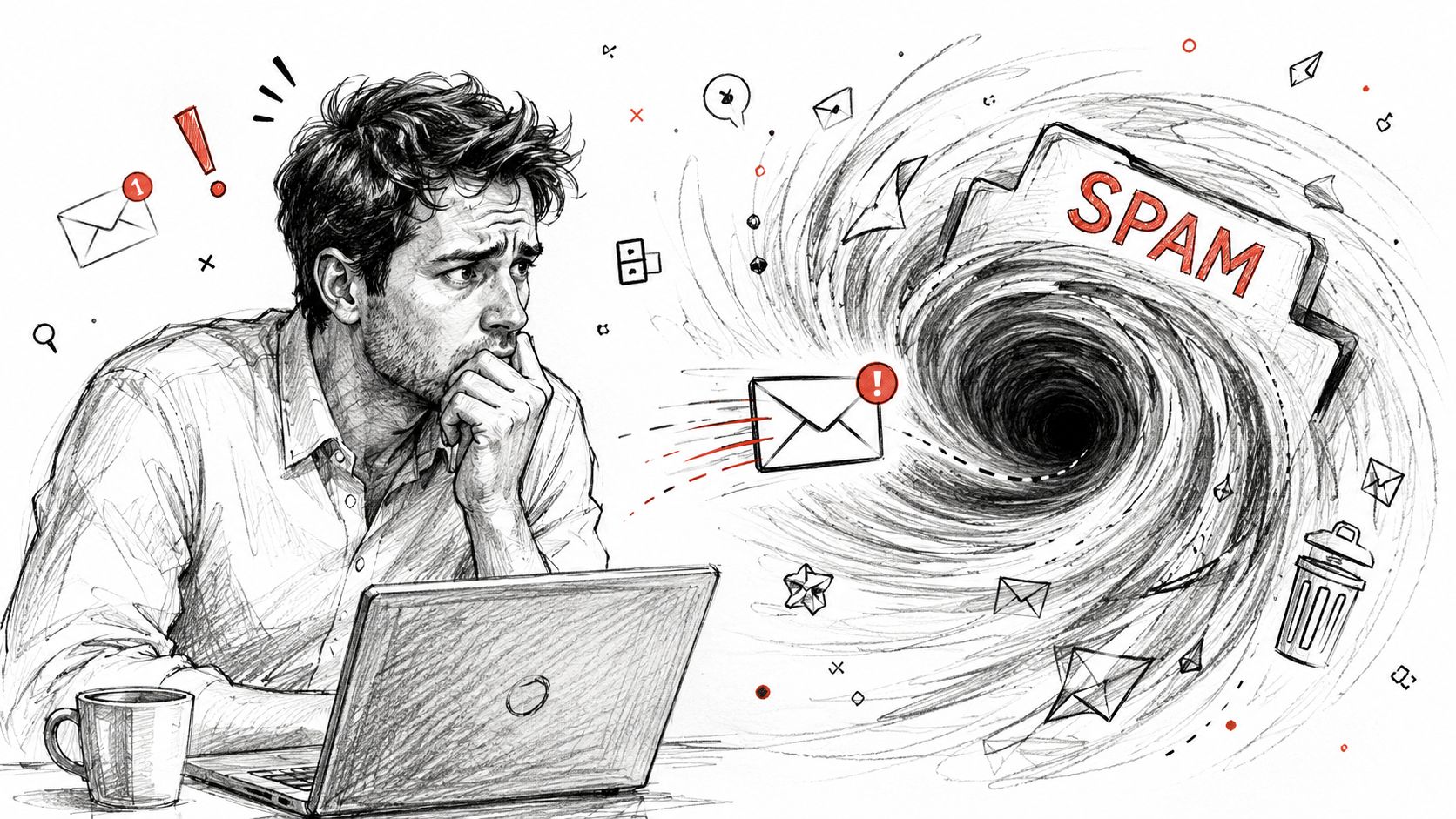
A concerned man sitting at his laptop looking at a swirling vortex of spam emails.

That aggressive filtering creates a problem for both sides of the inbox.

If you're the recipient, you miss things you need. Purchase receipts, password resets, invoices, and customer replies can end up in spam, Promotions, or quarantine. If you're the sender, your team sees a message leave your system but never get opened, replied to, or acted on.

Why mailbox providers act this way

Providers like Gmail, Outlook, and Yahoo don't know your intent. They look for signals. Some come from the sender's setup. Some come from content. Some come from recipient behavior. If the message looks uncertain, the filter leans defensive.

That's why whitelisting exists. It gives recipients a way to say, “I trust mail from this person or company.”

Practical rule: Whitelisting is most useful when the email matters enough that missing it would cause friction, delay, or lost revenue.

What whitelisting does and does not do

Whitelisting helps a recipient take control of their own inbox. It can improve the odds that wanted mail stays visible. It does not give a sender universal immunity from filtering across every provider, device, and mailbox.

For SMBs, the practical takeaway is simple:

  • Use whitelisting for high-value communication. Welcome emails, invoices, proposals, appointment confirmations, and account notices are good candidates.

  • Ask for it early. It's easier to train inbox behavior at signup or onboarding than after a problem appears.

  • Treat it as one layer. Recipient allowlisting helps, but durable inbox placement depends on your broader sending setup too.

Securing Delivery for Recipients Step by Step

Recipients usually want one thing: clear instructions that match the inbox they use.

The problem is that the action isn't the same everywhere. Gmail uses filters. Outlook usually uses a safe sender list. Yahoo handles this through filters as well. And on mobile, the available options may differ from the desktop version.
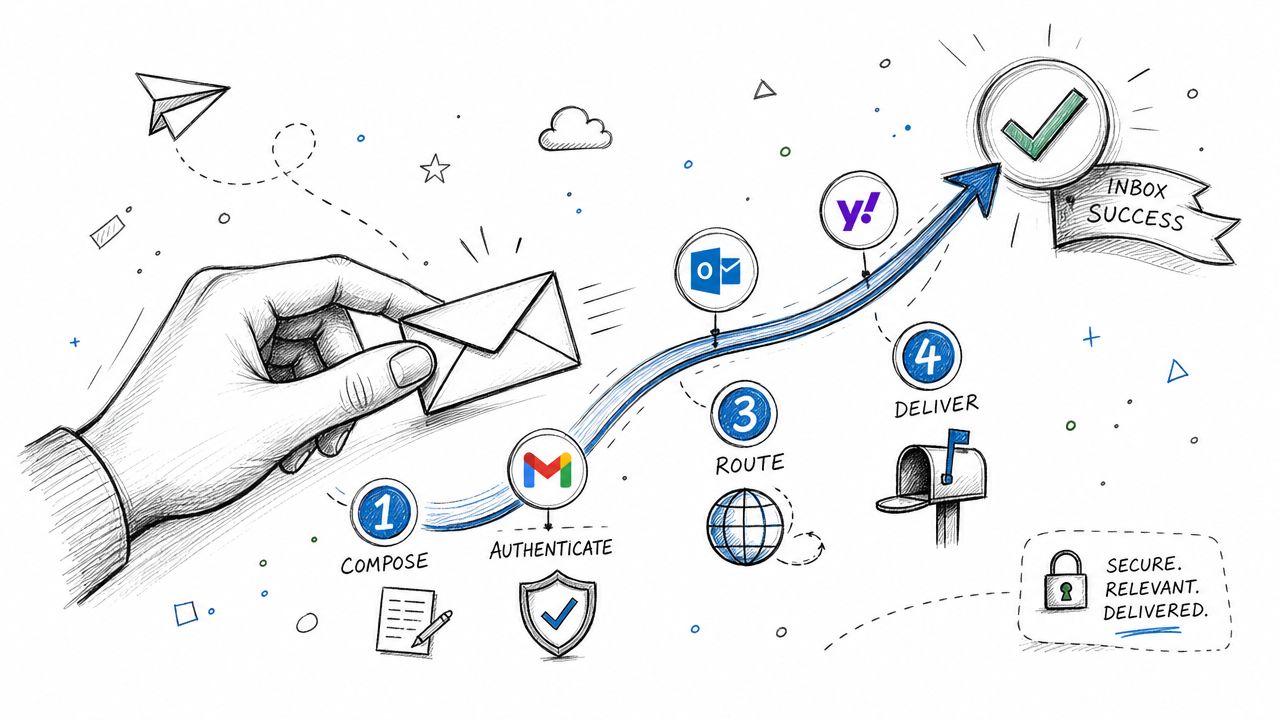
A hand holding an envelope following a path through authentication, routing, and delivery steps for email marketing.

Gmail

In Gmail, whitelisting is done with a filter rule, not just by clicking “not spam.” The durable path is to go to Settings > Filters and Blocked Addresses, create a new filter for the sender's address or domain, and select Never send it to Spam (Gmail whitelisting steps from Clean Email).

Use this approach:

  1. Open full settings. Click the gear icon, then choose the full settings view.

  2. Go to Filters and Blocked Addresses.

  3. Create a new filter.

  4. In the From field, enter either:

    • A full address if you trust only one sender, like billing@company.com

    • A domain if you trust the whole company, like @company.com

  5. Click through to create the rule.

  6. Check Never send it to Spam.

  7. Save the filter.

That address-versus-domain choice matters. A full email address covers one sender. A domain rule covers everyone sending from that company's domain.

If you're training customers or clients, it helps to point them to practical guidance on safer email allow-listing practices so they don't over-approve senders they don't fully trust.

Outlook and Microsoft 365

Outlook usually handles this through Safe senders and domains rather than Gmail-style filters. That difference causes a lot of confusion, especially on mixed-device teams.

A clean process looks like this:

  • Open Outlook settings

  • Go to Mail

  • Choose Junk email

  • Add the sender or domain under Safe senders and domains

  • Save the setting

Institutional guidance also warns against assuming that one action fixes everything. Contacts, junk settings, and client-specific rules don't always behave the same way, so it's smart to test by sending a controlled message after setup. That's the kind of operational detail many businesses miss when recipients say, “I already added you” but the message still goes missing.

Yahoo

Yahoo typically uses filters rather than a separate safe sender list.

The common pattern is:

  • Open Settings

  • Choose More Settings

  • Go to Filters

  • Create a new filter for the sender or domain

  • Route those messages to Inbox

That's usually enough for a trusted sender. Keep the rule narrow. For business-critical mail, approving an entire domain often makes more sense than approving one employee address that may change later.

A quick formatting note also matters on the sender side. If your email is hard to parse or inconsistent between clients, recipients may think something is off even before they whitelist it. This is one reason teams still compare HTML vs text email formats when they build customer communication.

A walkthrough can help non-technical recipients complete the right action:

Mobile changes the instructions

A big operational mistake is sending desktop-only steps to people who read everything on a phone. Guidance on whitelisting needs to account for that reality because Gmail desktop, Gmail mobile, Outlook desktop, and Outlook mobile can behave differently. Clear, simple instructions matter because many recipients will complete this process on mobile, not on a computer.

If your customer has to guess where the setting lives, many won't finish the task.

Why Whitelisting Is Not a Magic Bullet

A lot of SMBs assume the fix is simple: ask the customer to whitelist your email address and inbox placement will take care of itself.

That's not how deliverability works in practice.

Most how-to guides stop at the button clicks. They explain how to add a sender, but they don't address the bigger issue: a whitelisted sender can still end up in spam if SPF, DKIM, and DMARC alignment are weak or if list hygiene is poor. That's the core operational problem many SMBs face, as noted in Campaign Monitor's guide to whitelisting.

What still affects placement after allowlisting

Mailbox providers don't evaluate only one signal. They weigh broader trust patterns around your domain and your mail stream.

A sender can still run into trouble when:

  • Authentication is incomplete. The domain says one thing, the underlying sending setup says another.

  • List quality is weak. Old contacts, mistyped addresses, and low-intent signups create noise.

  • Engagement is poor. If recipients ignore, delete, or complain about messages, filters notice.

  • Content feels inconsistent. A transaction-style sender suddenly blasting promotions can trigger scrutiny.

Reality check: Whitelisting helps at the mailbox level. Reputation is built at the sender level.

What works better than repeated whitelist requests

If your current strategy is “ask more often,” you're leaning on the weakest part of the system. A better strategy is to make the whitelist request once, clearly, then fix the reasons filters may distrust you in the first place.

That means treating deliverability as an operating discipline:

Area

What to focus on

Authentication

Make sure your domain passes the right trust checks

Audience quality

Remove bad or stale contacts

Sending consistency

Keep patterns predictable

Email purpose

Match the message to what the recipient expects

When a whitelisted email still lands outside the primary inbox, it usually points to a broader trust issue, not a missing reminder banner in your footer.

Email Authentication for SMBs SPF DKIM and DMARC

If whitelisting is the recipient's trust signal, email authentication is the sender's trust signal.

Inbox providers rely on it because phishing has grown into a massive problem. One source tracked phishing volume at about 3.8 million attacks across a year by 2025, and the same source explains why providers lean on authentication to verify legitimate senders (phishing statistics from StationX).
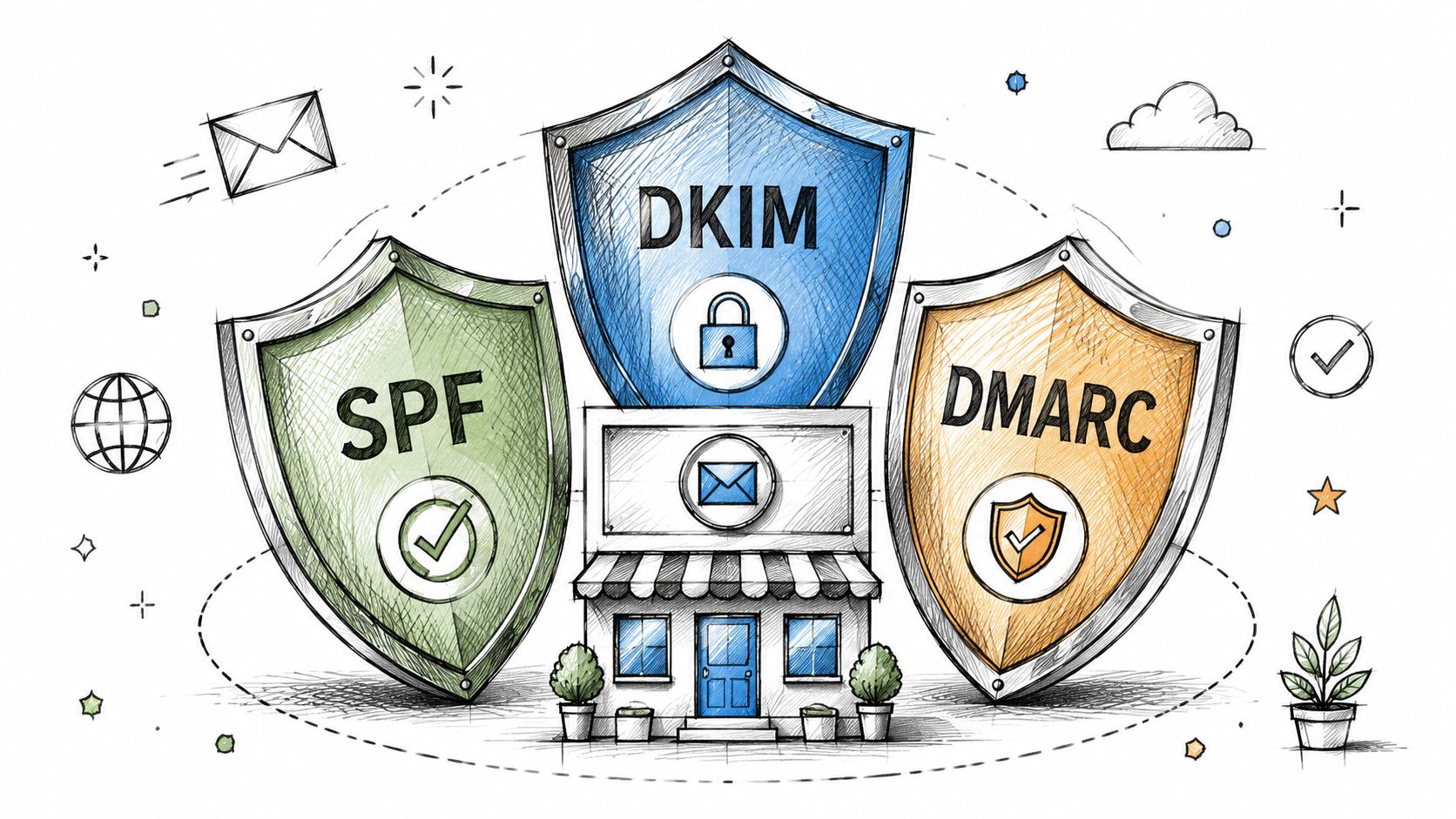
A hand-drawn illustration showing three protective shields labeled SPF, DKIM, and DMARC guarding a small digital storefront.

SPF

Think of SPF as your approved sender list.

It tells receiving systems which services are allowed to send on behalf of your domain. If your team uses one platform for newsletters, another for support, and another for sales outreach, SPF helps show which of those are legitimate. Without that signal, your message can look like it came from an unauthorized courier.

DKIM

DKIM acts like a tamper-evident seal.

It helps receiving servers verify that the message wasn't altered after it left the sender. For SMBs, the practical point is simple: if the message can't prove integrity, trust drops. That's true even when the content itself is harmless.

Authentication doesn't make a bad email good. It makes a legitimate email provable.

DMARC

DMARC is the policy layer.

It tells inbox providers what to do when SPF or DKIM checks fail, and it ties those checks back to your visible domain identity. In plain terms, DMARC helps providers decide whether to accept, quarantine, or reject suspicious mail claiming to come from your business.

That's why these three records work together. SPF authorizes. DKIM signs. DMARC instructs.

What SMBs should do in practice

You don't need to become a deliverability engineer, but you do need to own the basics.

  • Audit every sending tool. Marketing platforms, CRMs, help desks, invoicing apps, and outbound tools all affect trust.

  • Align the visible sender domain. The domain recipients see should match the domain your infrastructure supports.

  • Check changes after migrations. New platforms, new subdomains, and agency handoffs often break authentication.

  • Review adjacent controls. If your team is tightening web and network controls too, this DNS URL filtering guide gives useful context on another layer of traffic trust and blocking.

If you're evaluating sending infrastructure, cold email infrastructure providers for better deliverability can help you compare setups that support stronger authentication and reputation management.

How to Ask Customers to Whitelist Your Emails

The best whitelist request doesn't sound desperate. It sounds helpful.

Most businesses ask too late, usually after a customer says, “I didn't get your email.” The better time is right after signup, purchase, demo booking, or onboarding. That's when the recipient expects to hear from you and still recognizes your brand.
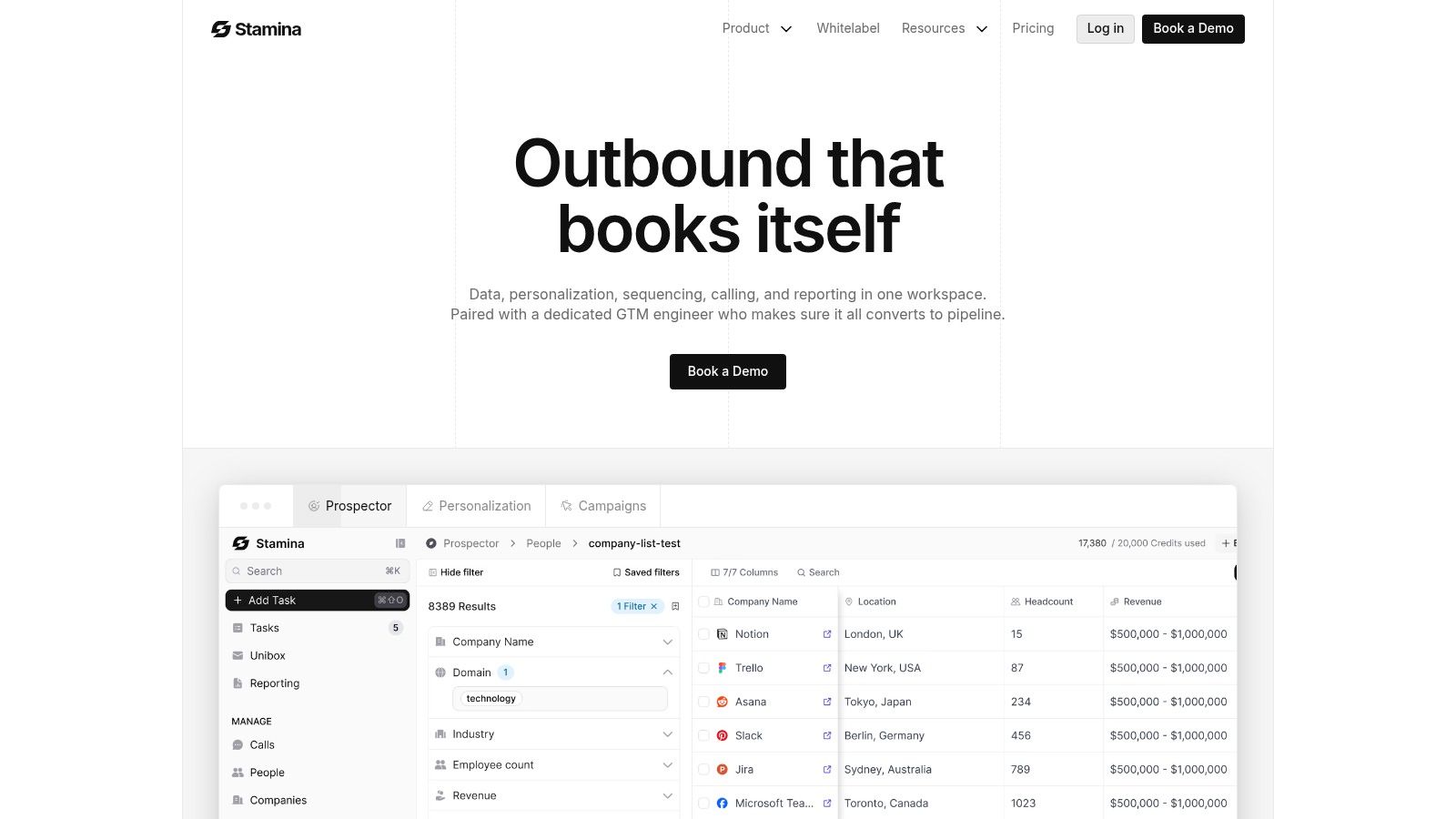
Screenshot from https://stamina.io

Where to place the request

You don't need to force this into every message. Put it where it fits naturally.

  • Welcome email: Best for newsletter signups, demos, and free trial starts.

  • Confirmation page: Good immediately after form completion while attention is high.

  • Onboarding checklist: Useful for account setup sequences and customer training.

  • Transactional footer: A light reminder works well in receipts, shipping notices, and account alerts.

Because inbox behavior differs across devices, keep the instruction short and mobile-friendly. Guidance on whitelisting needs to reflect that many recipients are using Gmail or Outlook on a phone, where steps can differ materially from desktop experiences (mobile and cross-client whitelisting guidance from BuildingWings).

Copy you can actually use

Here are practical templates.

Please add [your sending address] to your safe sender list so you don't miss account updates, receipts, and replies from our team.

A slightly more detailed version:

To make sure you receive our emails, please whitelist [your sending address] or allow mail from @[yourdomain.com]. If you use Gmail, create a filter and choose “Never send it to Spam.” If you use Outlook, add us to Safe senders and domains.

For onboarding:

  1. Step one: Check your inbox for our welcome email.

  2. Step two: If it lands in spam or promotions, move it to your inbox.

  3. Step three: Add [your sending address] to your contacts or safe sender list.

If you're building automated welcome and nurture flows in a system like Stamina, include this request early and keep the copy tight. The whitelist ask should support the user journey, not interrupt it. Strong copywriting for email helps here because the request needs to feel useful, not technical.

What to avoid

Some whitelist requests hurt more than they help.

  • Don't over-explain the mechanics. Most recipients don't want a deliverability lecture.

  • Don't ask them to trust a broad domain unless it makes sense. For some senders, approving one address is safer.

  • Don't bury the sender address. Make the exact address or domain obvious.

  • Don't write desktop-only instructions. A customer reading on mobile needs a simpler version.

Making Sure Your Emails Always Land

Reliable inbox placement comes from shared responsibility.

Recipients can whitelist an email when they want to make sure important messages stay visible. Senders have to earn that trust by authenticating their domain, keeping lists clean, and sending the kind of messages people expect to receive.

For a practical working model, keep it simple:

  • Recipients should add trusted senders using the right method for Gmail, Outlook, or Yahoo, then test with a real message.

  • Senders should set up SPF, DKIM, and DMARC, keep sending behavior consistent, and make whitelist requests early in the customer journey.

  • Teams should remember that cross-client behavior varies, especially on mobile, so instructions and testing need to match real usage.

If you're building process around this, it helps to learn the broader mechanics of understanding email deliverability so whitelist requests fit into a larger reputation strategy instead of becoming your only tactic.

A connected platform also makes this easier to manage. You can centralize sender identity, automate onboarding emails that include whitelist prompts, and monitor the health of your outbound setup in one place. If you want a next step, ways to improve email open rates pairs well with the deliverability work covered here because messages still need to be wanted after they arrive.

If you want one place to manage outreach, nurture flows, CRM activity, and email sending operations, Stamina gives SMB teams a unified system for building campaigns, automating follow-up, and supporting deliverability workflows without stitching together separate tools.

You send a proposal, invoice, onboarding note, or renewal reminder. The recipient says they never saw it. You check your sending tool, and the message shows as delivered. That's the frustrating part of email. Delivered doesn't always mean seen.

For SMBs, this usually turns into the same question: how do you whitelist an email so important messages stop disappearing? The short answer is that recipients can help by allowlisting trusted senders, but senders also have work to do. If your domain doesn't look trustworthy to inbox providers, asking people to whitelist you won't solve the actual problem.

Why Your Most Important Emails Go Missing

A missing email often isn't a sending failure. It's a filtering decision.

Mailbox providers have to make that decision constantly because spam still takes up a huge share of email traffic. One industry tracker estimated spam at 47.27% of global email traffic in 2024, which helps explain why providers filter aggressively and why users often whitelist trusted senders to avoid losing legitimate messages in junk folders (email marketing statistics from UseBouncer).

A concerned man sitting at his laptop looking at a swirling vortex of spam emails.

That aggressive filtering creates a problem for both sides of the inbox.

If you're the recipient, you miss things you need. Purchase receipts, password resets, invoices, and customer replies can end up in spam, Promotions, or quarantine. If you're the sender, your team sees a message leave your system but never get opened, replied to, or acted on.

Why mailbox providers act this way

Providers like Gmail, Outlook, and Yahoo don't know your intent. They look for signals. Some come from the sender's setup. Some come from content. Some come from recipient behavior. If the message looks uncertain, the filter leans defensive.

That's why whitelisting exists. It gives recipients a way to say, “I trust mail from this person or company.”

Practical rule: Whitelisting is most useful when the email matters enough that missing it would cause friction, delay, or lost revenue.

What whitelisting does and does not do

Whitelisting helps a recipient take control of their own inbox. It can improve the odds that wanted mail stays visible. It does not give a sender universal immunity from filtering across every provider, device, and mailbox.

For SMBs, the practical takeaway is simple:

  • Use whitelisting for high-value communication. Welcome emails, invoices, proposals, appointment confirmations, and account notices are good candidates.

  • Ask for it early. It's easier to train inbox behavior at signup or onboarding than after a problem appears.

  • Treat it as one layer. Recipient allowlisting helps, but durable inbox placement depends on your broader sending setup too.

Securing Delivery for Recipients Step by Step

Recipients usually want one thing: clear instructions that match the inbox they use.

The problem is that the action isn't the same everywhere. Gmail uses filters. Outlook usually uses a safe sender list. Yahoo handles this through filters as well. And on mobile, the available options may differ from the desktop version.

A hand holding an envelope following a path through authentication, routing, and delivery steps for email marketing.

Gmail

In Gmail, whitelisting is done with a filter rule, not just by clicking “not spam.” The durable path is to go to Settings > Filters and Blocked Addresses, create a new filter for the sender's address or domain, and select Never send it to Spam (Gmail whitelisting steps from Clean Email).

Use this approach:

  1. Open full settings. Click the gear icon, then choose the full settings view.

  2. Go to Filters and Blocked Addresses.

  3. Create a new filter.

  4. In the From field, enter either:

    • A full address if you trust only one sender, like billing@company.com

    • A domain if you trust the whole company, like @company.com

  5. Click through to create the rule.

  6. Check Never send it to Spam.

  7. Save the filter.

That address-versus-domain choice matters. A full email address covers one sender. A domain rule covers everyone sending from that company's domain.

If you're training customers or clients, it helps to point them to practical guidance on safer email allow-listing practices so they don't over-approve senders they don't fully trust.

Outlook and Microsoft 365

Outlook usually handles this through Safe senders and domains rather than Gmail-style filters. That difference causes a lot of confusion, especially on mixed-device teams.

A clean process looks like this:

  • Open Outlook settings

  • Go to Mail

  • Choose Junk email

  • Add the sender or domain under Safe senders and domains

  • Save the setting

Institutional guidance also warns against assuming that one action fixes everything. Contacts, junk settings, and client-specific rules don't always behave the same way, so it's smart to test by sending a controlled message after setup. That's the kind of operational detail many businesses miss when recipients say, “I already added you” but the message still goes missing.

Yahoo

Yahoo typically uses filters rather than a separate safe sender list.

The common pattern is:

  • Open Settings

  • Choose More Settings

  • Go to Filters

  • Create a new filter for the sender or domain

  • Route those messages to Inbox

That's usually enough for a trusted sender. Keep the rule narrow. For business-critical mail, approving an entire domain often makes more sense than approving one employee address that may change later.

A quick formatting note also matters on the sender side. If your email is hard to parse or inconsistent between clients, recipients may think something is off even before they whitelist it. This is one reason teams still compare HTML vs text email formats when they build customer communication.

A walkthrough can help non-technical recipients complete the right action:

Mobile changes the instructions

A big operational mistake is sending desktop-only steps to people who read everything on a phone. Guidance on whitelisting needs to account for that reality because Gmail desktop, Gmail mobile, Outlook desktop, and Outlook mobile can behave differently. Clear, simple instructions matter because many recipients will complete this process on mobile, not on a computer.

If your customer has to guess where the setting lives, many won't finish the task.

Why Whitelisting Is Not a Magic Bullet

A lot of SMBs assume the fix is simple: ask the customer to whitelist your email address and inbox placement will take care of itself.

That's not how deliverability works in practice.

Most how-to guides stop at the button clicks. They explain how to add a sender, but they don't address the bigger issue: a whitelisted sender can still end up in spam if SPF, DKIM, and DMARC alignment are weak or if list hygiene is poor. That's the core operational problem many SMBs face, as noted in Campaign Monitor's guide to whitelisting.

What still affects placement after allowlisting

Mailbox providers don't evaluate only one signal. They weigh broader trust patterns around your domain and your mail stream.

A sender can still run into trouble when:

  • Authentication is incomplete. The domain says one thing, the underlying sending setup says another.

  • List quality is weak. Old contacts, mistyped addresses, and low-intent signups create noise.

  • Engagement is poor. If recipients ignore, delete, or complain about messages, filters notice.

  • Content feels inconsistent. A transaction-style sender suddenly blasting promotions can trigger scrutiny.

Reality check: Whitelisting helps at the mailbox level. Reputation is built at the sender level.

What works better than repeated whitelist requests

If your current strategy is “ask more often,” you're leaning on the weakest part of the system. A better strategy is to make the whitelist request once, clearly, then fix the reasons filters may distrust you in the first place.

That means treating deliverability as an operating discipline:

Area

What to focus on

Authentication

Make sure your domain passes the right trust checks

Audience quality

Remove bad or stale contacts

Sending consistency

Keep patterns predictable

Email purpose

Match the message to what the recipient expects

When a whitelisted email still lands outside the primary inbox, it usually points to a broader trust issue, not a missing reminder banner in your footer.

Email Authentication for SMBs SPF DKIM and DMARC

If whitelisting is the recipient's trust signal, email authentication is the sender's trust signal.

Inbox providers rely on it because phishing has grown into a massive problem. One source tracked phishing volume at about 3.8 million attacks across a year by 2025, and the same source explains why providers lean on authentication to verify legitimate senders (phishing statistics from StationX).

A hand-drawn illustration showing three protective shields labeled SPF, DKIM, and DMARC guarding a small digital storefront.

SPF

Think of SPF as your approved sender list.

It tells receiving systems which services are allowed to send on behalf of your domain. If your team uses one platform for newsletters, another for support, and another for sales outreach, SPF helps show which of those are legitimate. Without that signal, your message can look like it came from an unauthorized courier.

DKIM

DKIM acts like a tamper-evident seal.

It helps receiving servers verify that the message wasn't altered after it left the sender. For SMBs, the practical point is simple: if the message can't prove integrity, trust drops. That's true even when the content itself is harmless.

Authentication doesn't make a bad email good. It makes a legitimate email provable.

DMARC

DMARC is the policy layer.

It tells inbox providers what to do when SPF or DKIM checks fail, and it ties those checks back to your visible domain identity. In plain terms, DMARC helps providers decide whether to accept, quarantine, or reject suspicious mail claiming to come from your business.

That's why these three records work together. SPF authorizes. DKIM signs. DMARC instructs.

What SMBs should do in practice

You don't need to become a deliverability engineer, but you do need to own the basics.

  • Audit every sending tool. Marketing platforms, CRMs, help desks, invoicing apps, and outbound tools all affect trust.

  • Align the visible sender domain. The domain recipients see should match the domain your infrastructure supports.

  • Check changes after migrations. New platforms, new subdomains, and agency handoffs often break authentication.

  • Review adjacent controls. If your team is tightening web and network controls too, this DNS URL filtering guide gives useful context on another layer of traffic trust and blocking.

If you're evaluating sending infrastructure, cold email infrastructure providers for better deliverability can help you compare setups that support stronger authentication and reputation management.

How to Ask Customers to Whitelist Your Emails

The best whitelist request doesn't sound desperate. It sounds helpful.

Most businesses ask too late, usually after a customer says, “I didn't get your email.” The better time is right after signup, purchase, demo booking, or onboarding. That's when the recipient expects to hear from you and still recognizes your brand.

Screenshot from https://stamina.io

Where to place the request

You don't need to force this into every message. Put it where it fits naturally.

  • Welcome email: Best for newsletter signups, demos, and free trial starts.

  • Confirmation page: Good immediately after form completion while attention is high.

  • Onboarding checklist: Useful for account setup sequences and customer training.

  • Transactional footer: A light reminder works well in receipts, shipping notices, and account alerts.

Because inbox behavior differs across devices, keep the instruction short and mobile-friendly. Guidance on whitelisting needs to reflect that many recipients are using Gmail or Outlook on a phone, where steps can differ materially from desktop experiences (mobile and cross-client whitelisting guidance from BuildingWings).

Copy you can actually use

Here are practical templates.

Please add [your sending address] to your safe sender list so you don't miss account updates, receipts, and replies from our team.

A slightly more detailed version:

To make sure you receive our emails, please whitelist [your sending address] or allow mail from @[yourdomain.com]. If you use Gmail, create a filter and choose “Never send it to Spam.” If you use Outlook, add us to Safe senders and domains.

For onboarding:

  1. Step one: Check your inbox for our welcome email.

  2. Step two: If it lands in spam or promotions, move it to your inbox.

  3. Step three: Add [your sending address] to your contacts or safe sender list.

If you're building automated welcome and nurture flows in a system like Stamina, include this request early and keep the copy tight. The whitelist ask should support the user journey, not interrupt it. Strong copywriting for email helps here because the request needs to feel useful, not technical.

What to avoid

Some whitelist requests hurt more than they help.

  • Don't over-explain the mechanics. Most recipients don't want a deliverability lecture.

  • Don't ask them to trust a broad domain unless it makes sense. For some senders, approving one address is safer.

  • Don't bury the sender address. Make the exact address or domain obvious.

  • Don't write desktop-only instructions. A customer reading on mobile needs a simpler version.

Making Sure Your Emails Always Land

Reliable inbox placement comes from shared responsibility.

Recipients can whitelist an email when they want to make sure important messages stay visible. Senders have to earn that trust by authenticating their domain, keeping lists clean, and sending the kind of messages people expect to receive.

For a practical working model, keep it simple:

  • Recipients should add trusted senders using the right method for Gmail, Outlook, or Yahoo, then test with a real message.

  • Senders should set up SPF, DKIM, and DMARC, keep sending behavior consistent, and make whitelist requests early in the customer journey.

  • Teams should remember that cross-client behavior varies, especially on mobile, so instructions and testing need to match real usage.

If you're building process around this, it helps to learn the broader mechanics of understanding email deliverability so whitelist requests fit into a larger reputation strategy instead of becoming your only tactic.

A connected platform also makes this easier to manage. You can centralize sender identity, automate onboarding emails that include whitelist prompts, and monitor the health of your outbound setup in one place. If you want a next step, ways to improve email open rates pairs well with the deliverability work covered here because messages still need to be wanted after they arrive.

If you want one place to manage outreach, nurture flows, CRM activity, and email sending operations, Stamina gives SMB teams a unified system for building campaigns, automating follow-up, and supporting deliverability workflows without stitching together separate tools.

Share this article

Share this article

Send a shareable link to your team or anyone who might find it useful.

Send a shareable link to your team or anyone who might find it useful.

Copy link

Copied

Share directly to

Table of contents

Give Your Business the Stamina it needs to Thrive

PRODUCT

COMPANY

RESOURCES

© 2026 Stamina Software Technologies Inc. All rights reserved.

PRODUCT

COMPANY

RESOURCES

© 2026 Stamina Software Technologies Inc. All rights reserved.

PRODUCT

COMPANY

RESOURCES

© 2026 Stamina Software Technologies Inc. All rights reserved.